
You can Archive a document or Mark it as Signed in TotalBrokerage.
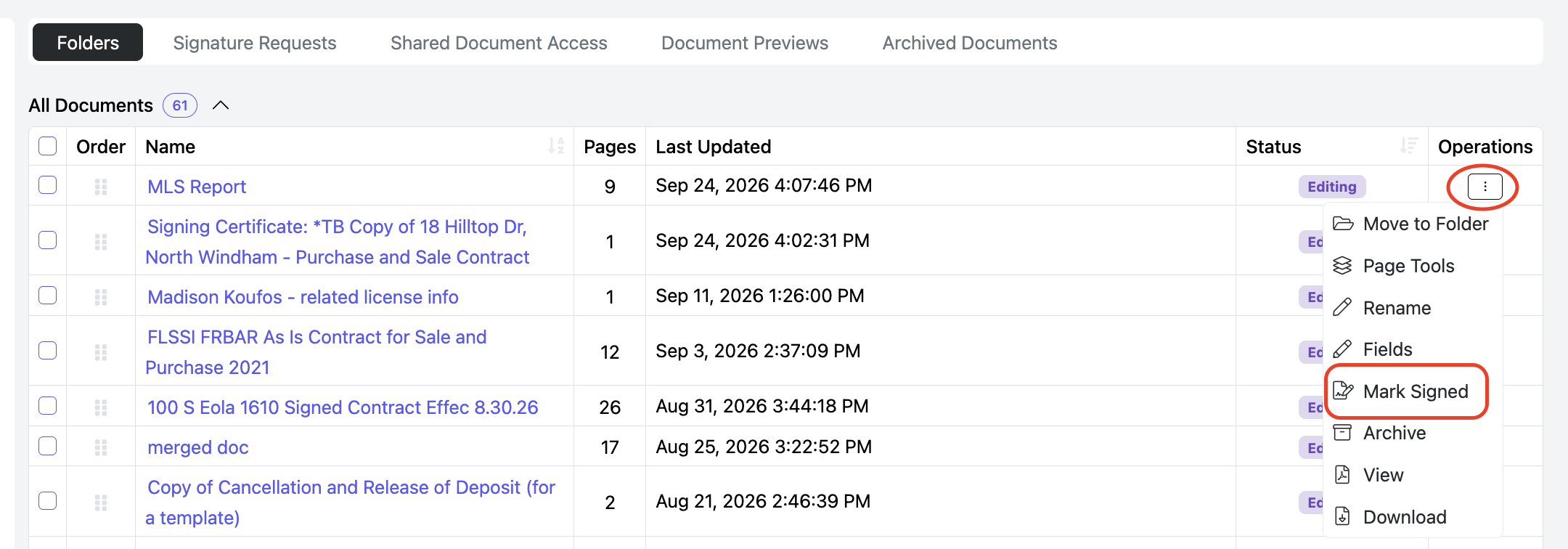
Marking a document as signed changes its status from Editing, Partially Signed, or Signatures Requested to Signed.
Documents must have a status of Signed before they can be shared or uploaded to a checklist.
To mark a document as signed:
- Locate the document.
- Click the 3 dots in the Operations column.
- Select Mark Signed.
The document’s status will then change to Signed.
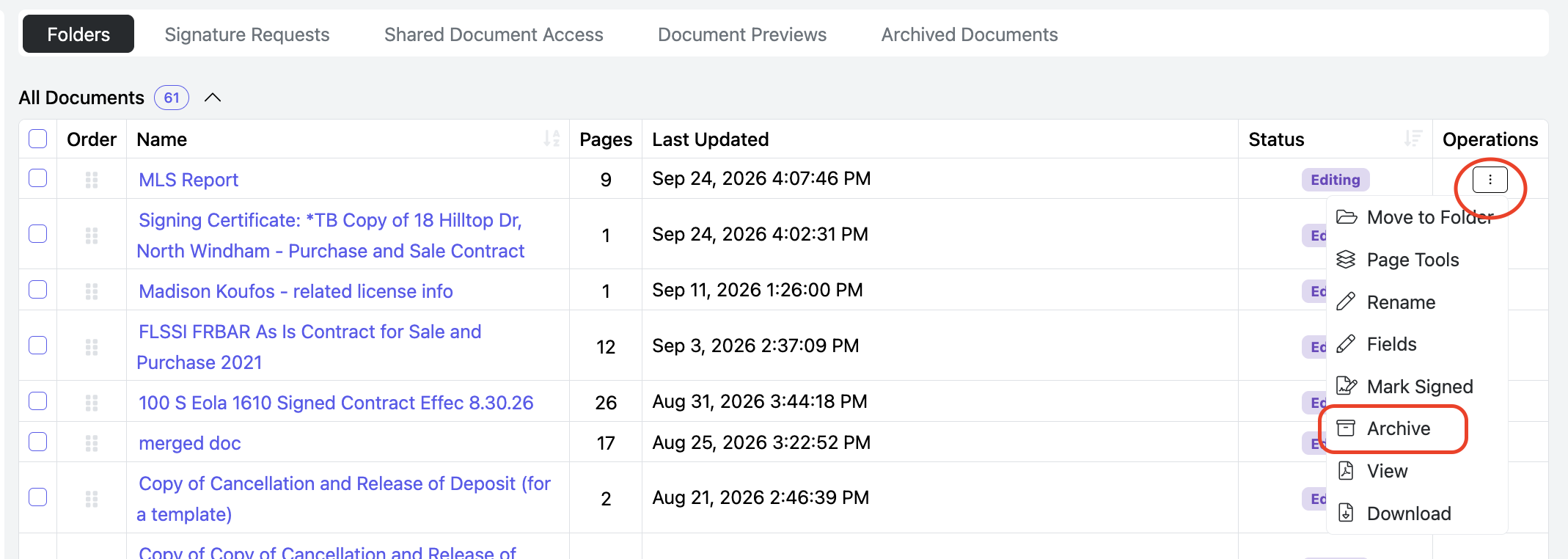
ARCHIVE - If you have a document that you are no longer using or that is an older version, you can Archive it to keep your Documents tab organized.
- Locate the document.
- Click the 3 dots in the Operations column.
- Select Mark Signed.
The document will be placed in the Archived Documents folder at the top of the Documents tab.
UNARCHIVE
To unarchive a document from the Archived Documents tab:- Click Operations next to the document.
- Select Copy.
- Choose one of the following options:
- Amend – Edit the document as it currently appears, including any existing signatures.
- Copy – Create a new version of the document with all signatures cleared.
- The copied document will appear at the top of the Documents tab.