
An Automation is a marketing campaign (a.k.a. drip campaign) that you send to your contacts.
Click Here for Template/Automation suggestions.
To create a new automation, click “Marketing”, and then “Automations” on the sidebar menu.

CREATE AN AUTOMATION
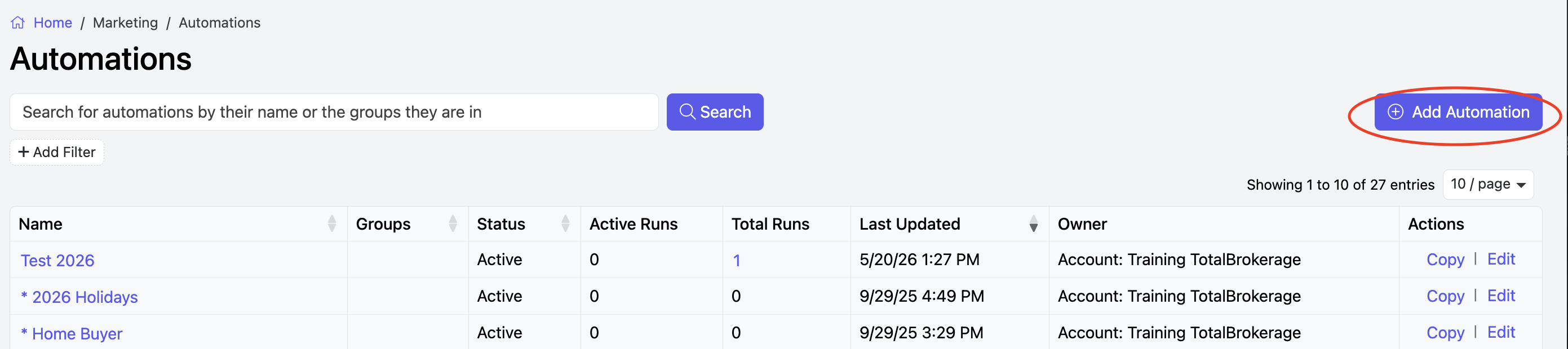
In Automations, click “Actions” and then “+Add New Automation” at the top-right corner of the screen.
Complete the fields:
- Name
- Status
- Owner
- Groups (optional)
- if you want the automation to stop if the contact sends an email or a text.
Click Save when you are done.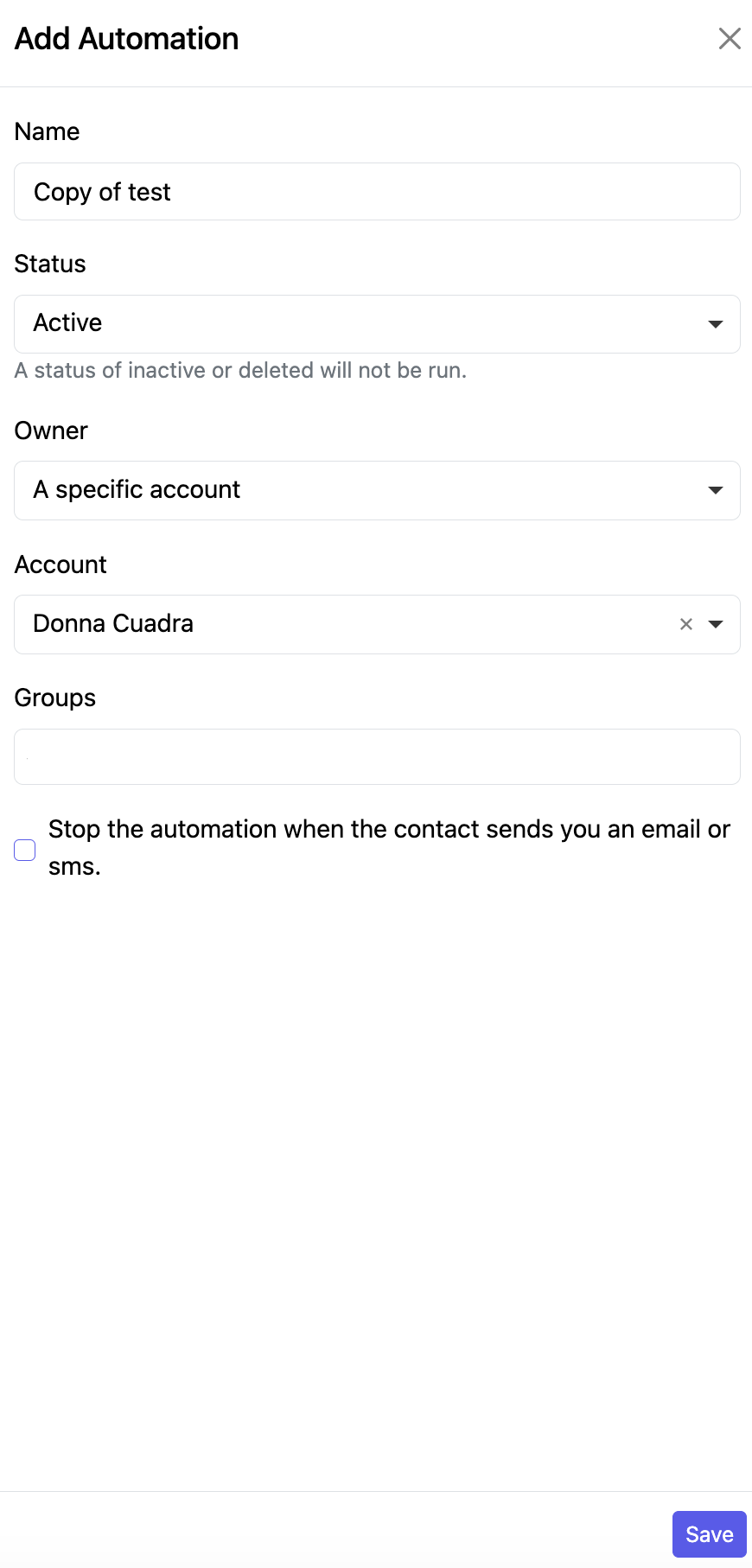
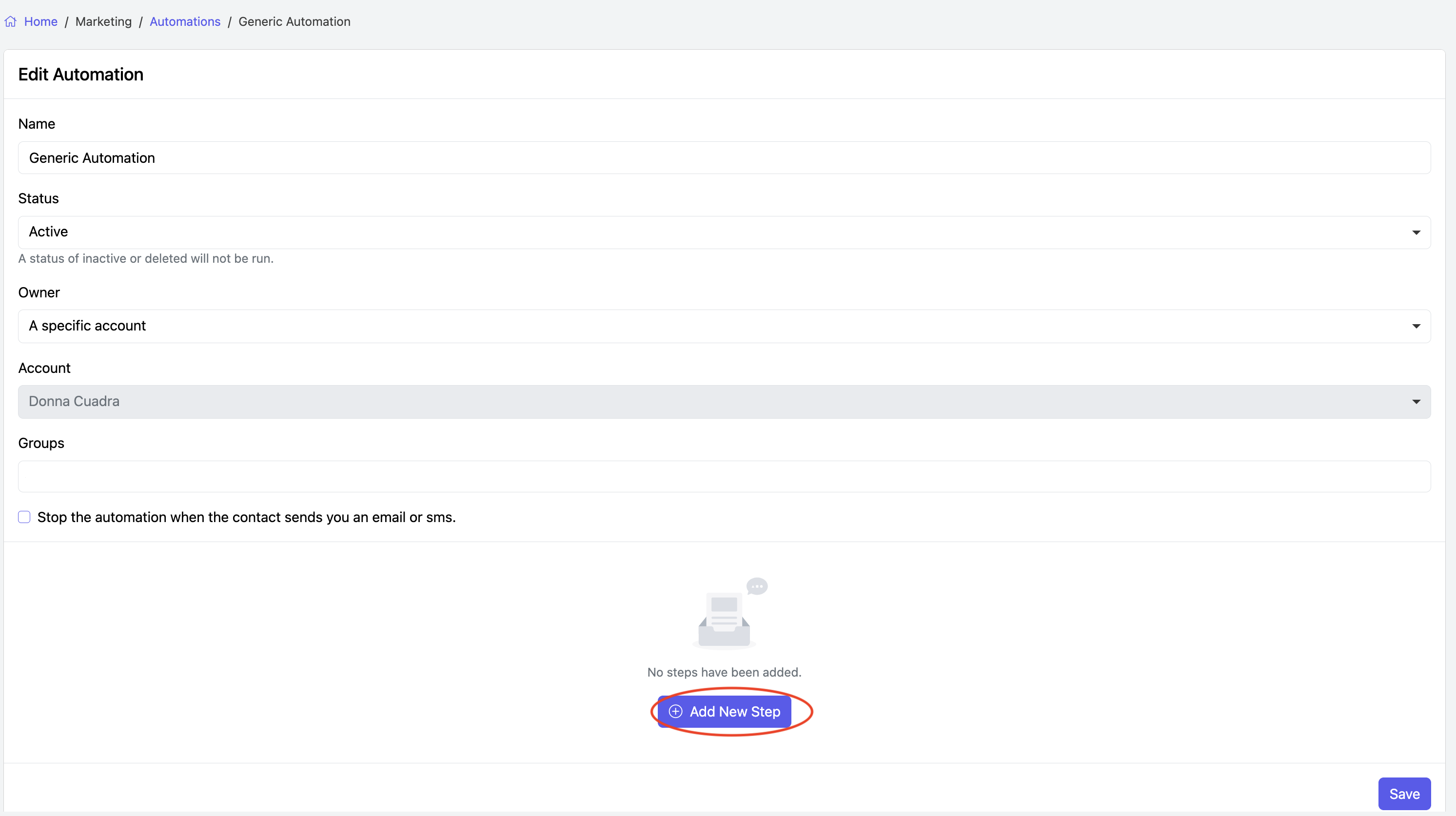
After clicking Save, you can start to build this Automation.
Click + Add New Step
Complete the following:
- Name of the step - this is your identifier
- Type - Email or SMS
- Status - Acitve, Inactive or Deleted
- Delay - when do you want this email to be sent
- Run the same day the automation is added to the contact
- Run a specific amount of time after the automation is added to the contact
- Run on a specific date
- Time - you may select either the same time as when the automation was added to the contact, or a specific time (A date widget will appear, prompting you to select the date the automation will run.)
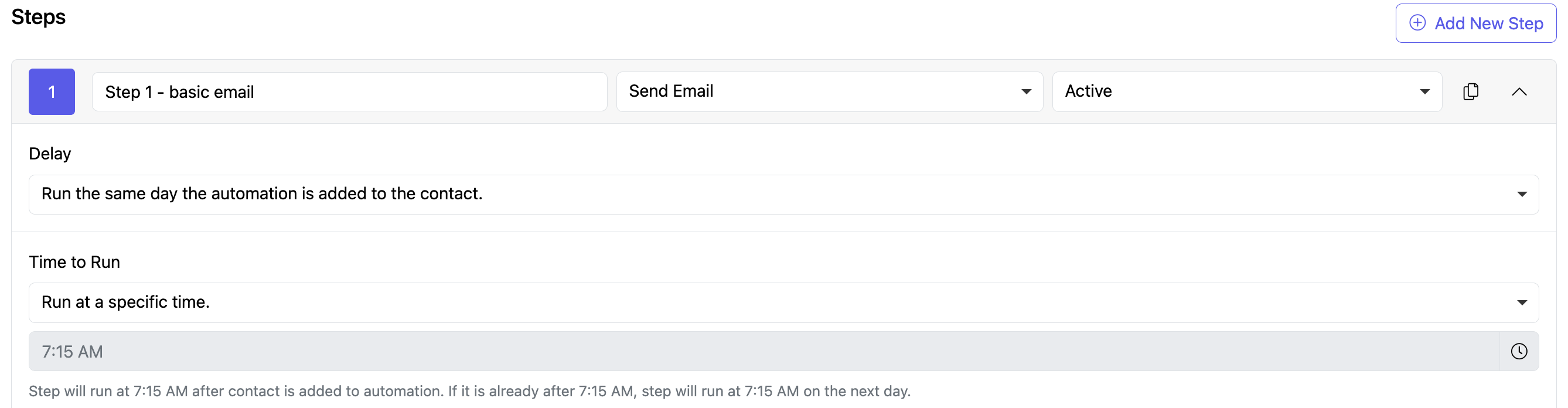
As you're building the steps for the Automation, you can Change the Type of Action (Send Email or Send SMS)
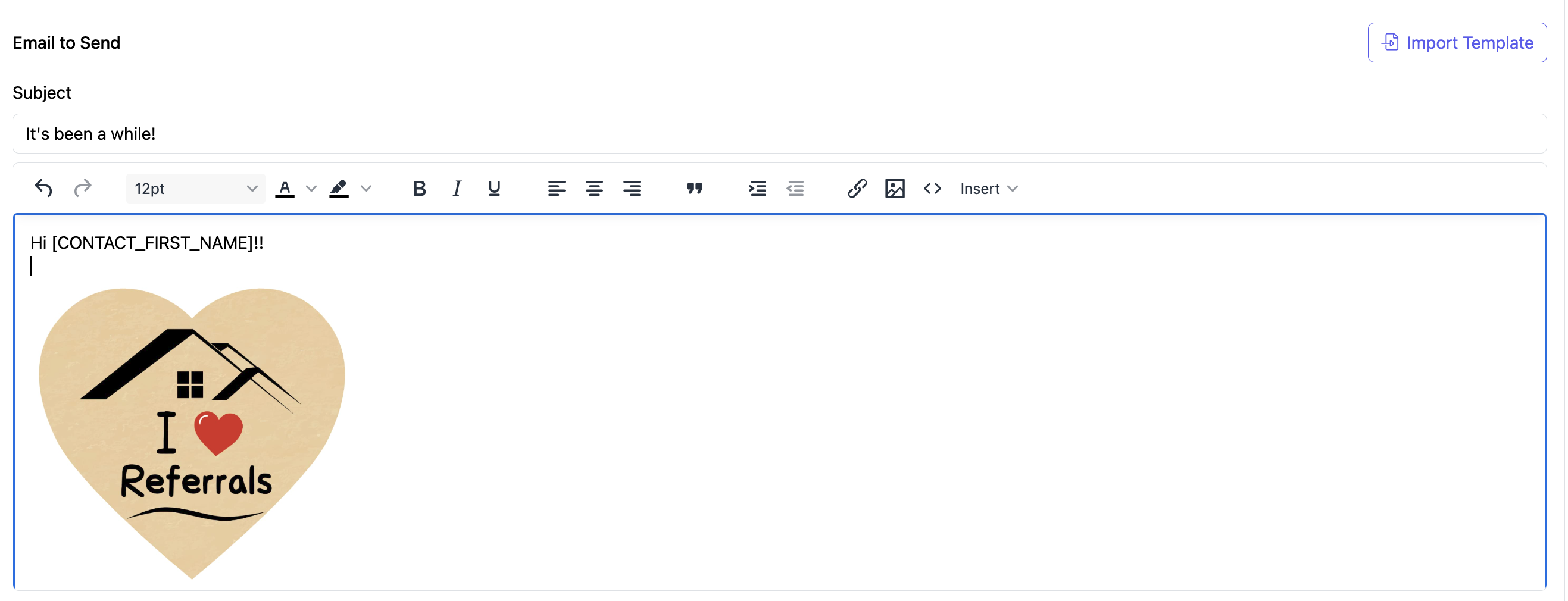
Next, you will compose a message to send to the contact.
In the editor, you can select details to automatically be replaced when the SMS is sent.
You can also choose to import a template if applicable.
Click the Down arrow to expand the step to edit.
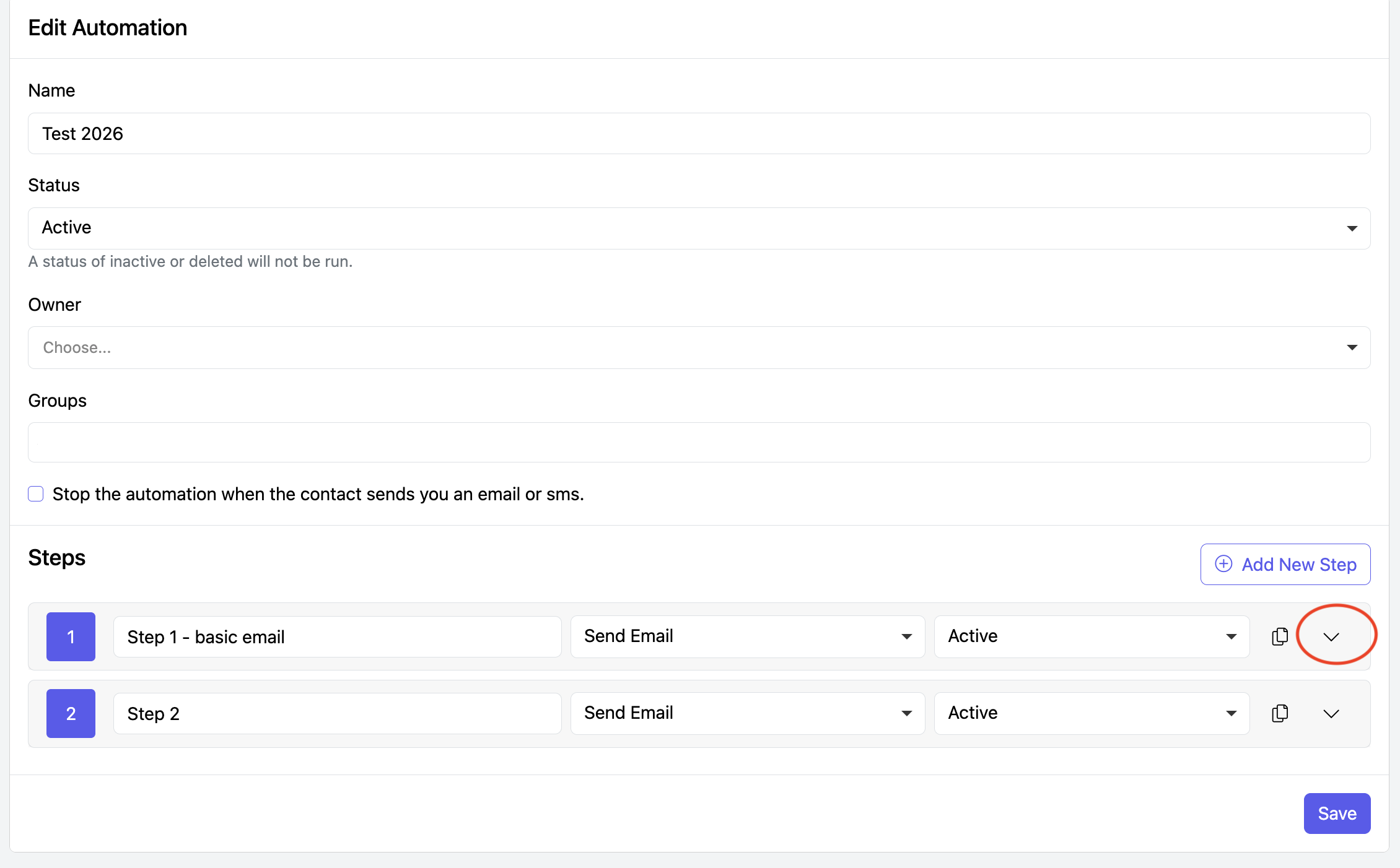
Click the Copy icon to duplicate the step.

Creating the Email:
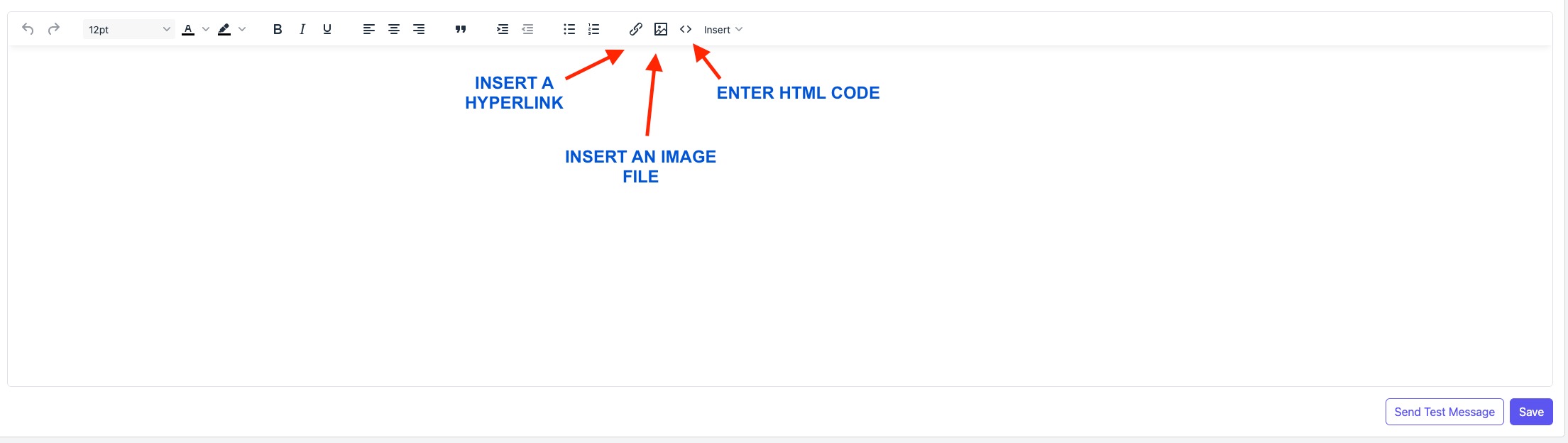
Toolbar: Use the toolbar to enhance your template with dynamic elements like images, hyperlinks, or custom HTML code.
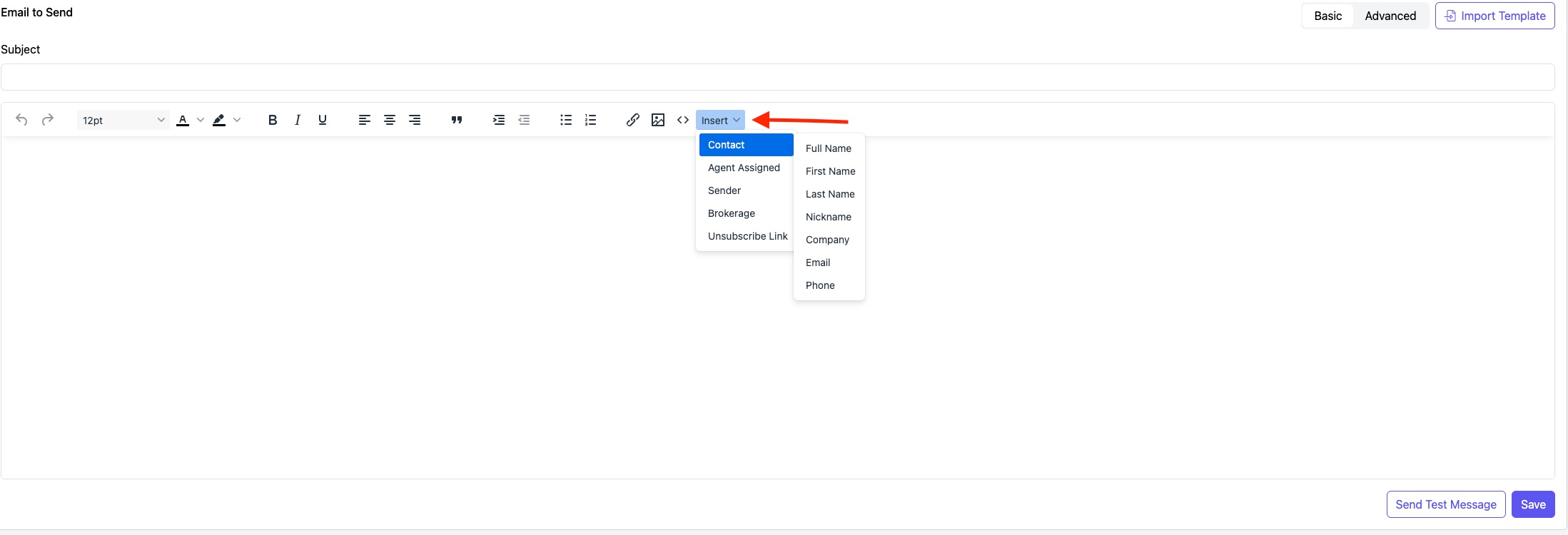
Insert: Inside the template's body, you can also use the Insert button to pull details of the contact via mail merge.
Remember to click “Save” when you are finished.
COPYING AN AUTOMATION
Automations where the owner is the Brokerage can be copied for Agent use.
Go to Marketing > Automations.
Click Copy for the Automation that you'd like to edit and save for your use.
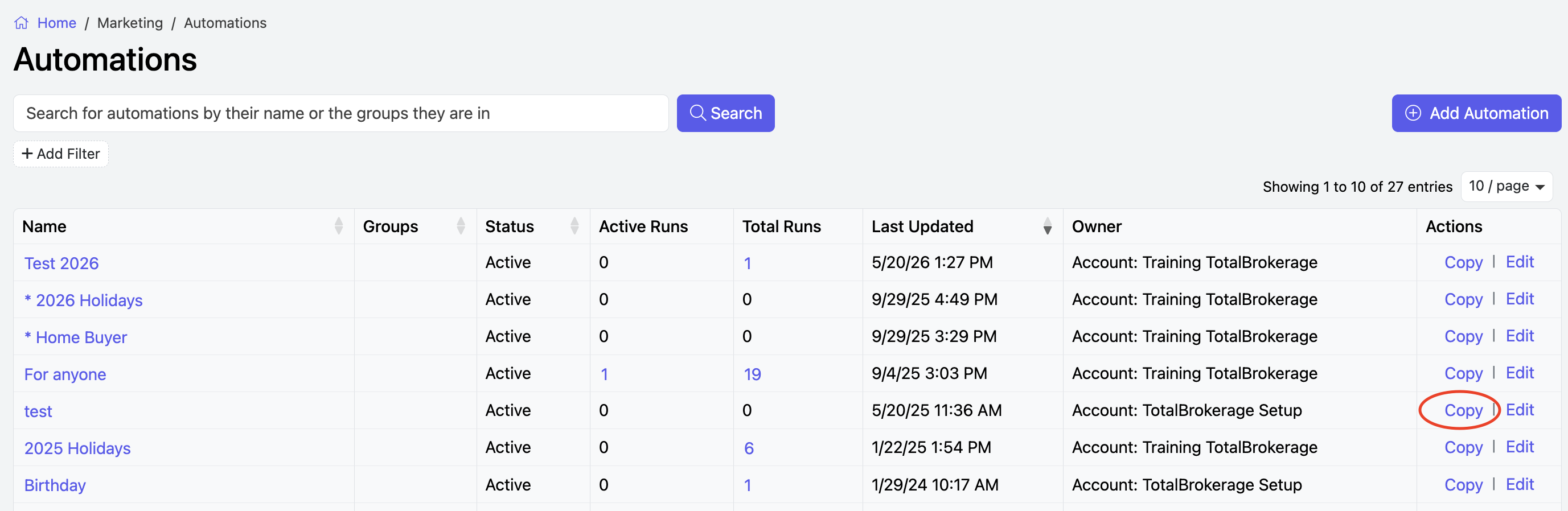
After you click copy, complete the fields:
- Name
- Status
- Owner
- Groups (optional)
- if you want the automation to stop if the contact sends an email or a text.
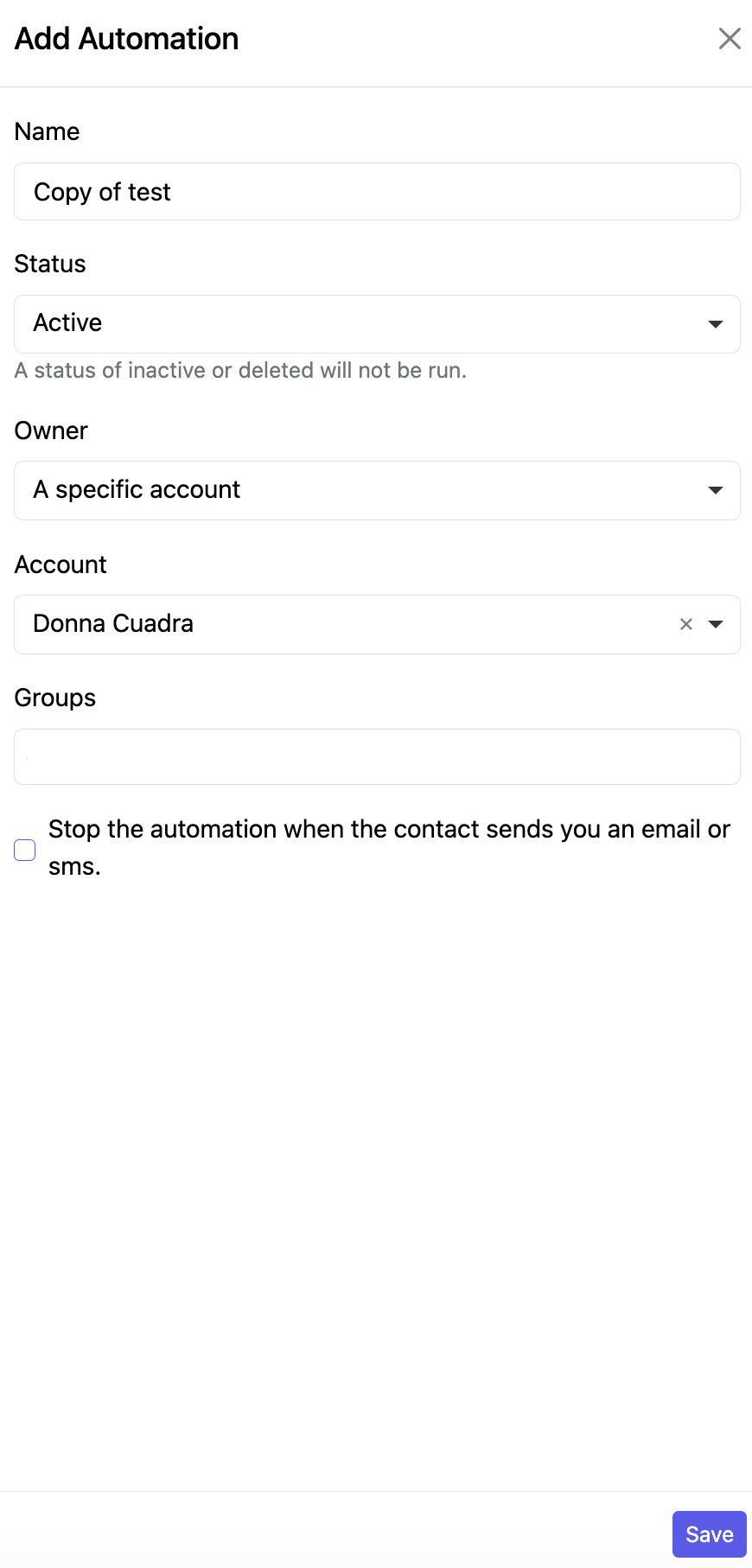
After you select the owner and add additional information press save and it will bring you to the step editor page.
You will see that all of the steps from the automation you copied will already be here.
You can add a new step by clicking the actions button and selecting "add new step".
You can edit the existing steps by clicking the edit button in the row for the step.